

Why use cloud templates?
Installation & Usage
A cloud template is a fully-configured, on-demand development environment that lives in the cloud. Cloud templates give you the same tools and dependencies you’d expect locally, so you can build, test, and run code directly from Factory.To get the most out of cloud templates, configure environment variables and a setup script during template creation. The setup script installs dependencies and prepares your development environment automatically, ensuring every team member has an identical setup.
System Requirements
- A repository enabled in Factory
- User role or higher to create cloud templates
1
Open Cloud Templates Settings
- In Factory, click the Settings icon from the left sidebar.
- Select Cloud Templates.
2
Create a New Cloud Template
- Click Create Template.
- Enter the repository you want to use.
- Give your template a friendly name (e.g., “frontend-template”).
- (Optional) Configure a setup script to run during template initialization.
- Click Create.
Factory clones your repo and prepares the environment—this can take a minute for large projects.
3
Verify Template Ready
The new template appears in the list with a status indicator. Once it shows Ready, you can use it from any session.
Launching a Cloud Template inside a Session
1
Open or Start a Session
Join any Factory session as usual.
2
Connect to Cloud Machine
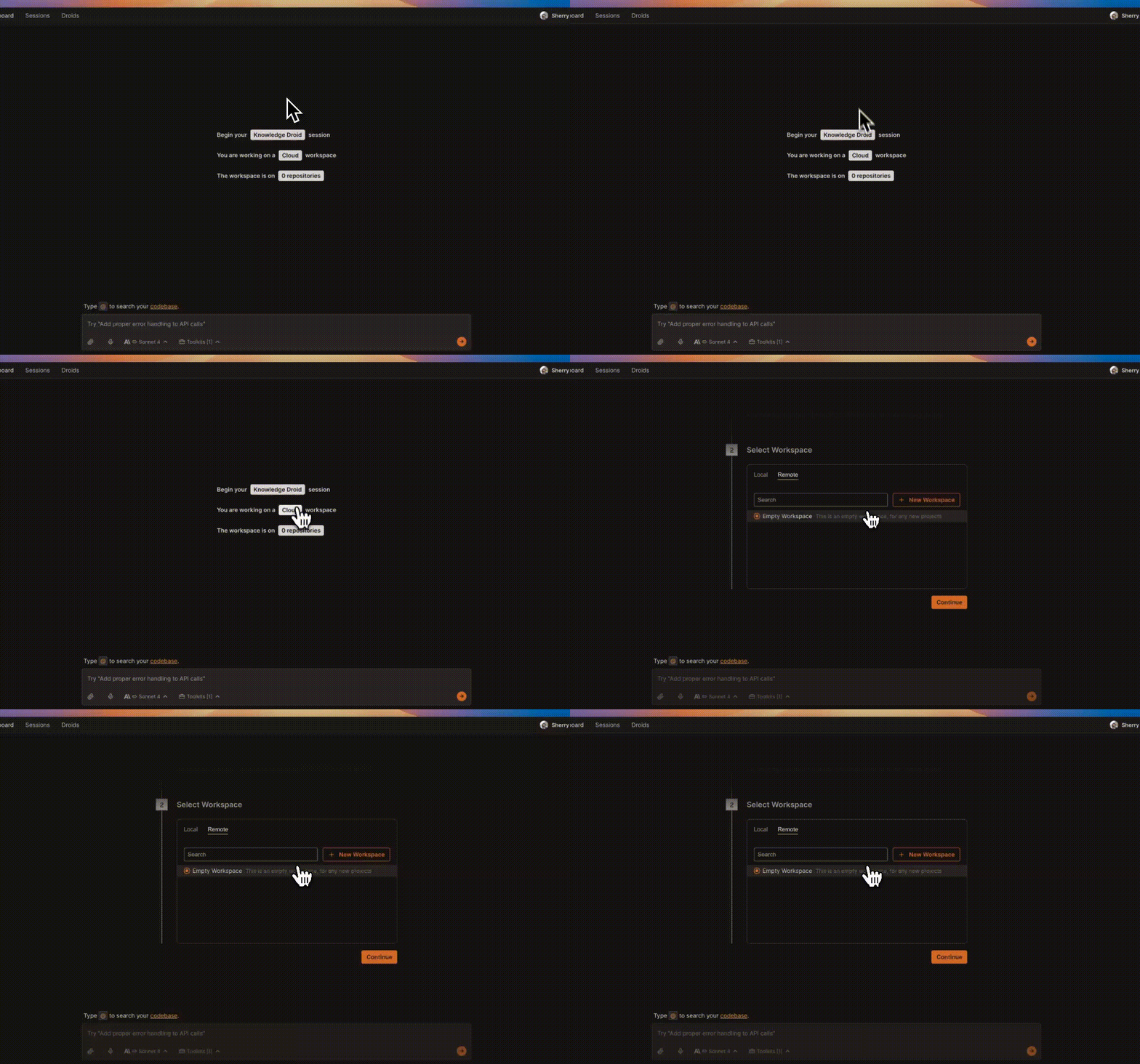
- On the session start page, click the Machine Connection button.
- Choose Remote tab.
- Select the template you created earlier.
- Factory attaches the cloud template to your session.
3
Confirm Connection
A green indicator and remote working directory appear on the top-right next to your profile dropdown menu. You’re now interacting with the cloud template.
Everyday Usage
Run CLI Commands
Use the Terminal toolkit to execute commands like:
npm run dev
pytest
git status
Output streams live into chat and logs.
Edit & Save Files
Open files from the repo, make changes, and save.
Files persist in the cloud template and can be committed upstream when ready.
Auto-Save Controls
Auto-save is disabled by default—enable it from the Session Settings panel whenever you want live file syncing.
Setup Script
The setup script is a shell script that Factory runs during template creation, after your repository is cloned and before the template is activated. Use this feature to set up your template and give droid tools to work with your codebase.How to define a setup script
- In the modal for template creation, in the “Setup Script (Optional)” section, add your initialization script. You can write a multi-line bash script with all the commands you need.
- Submit. The script runs in the repo root exactly as provided. Add
set -euo pipefailat the top of your script if you want strict error handling. Script failures will stop the build. - Keep your script non‑interactive and idempotent. Write commands that can be safely re-run.
- Review build logs if anything fails to see detailed output from your script execution.
- The script executes after repository cloning, inside the build container at the repo root.
- Environment variables specified in template settings are available during script execution.
- Errors are surfaced clearly (e.g.,
Setup script failed: ...) for quick fixes.
Setup script troubleshooting tips
Best Practices
Cloud templates let you spin up consistent, production-ready development environments in seconds. Below are field-tested practices that keep templates fast, predictable, and team-friendly.Smart setup script practices
Tip: Test your setup script locally first. The script runs withbashat the repo root, and you can addset -euo pipefailfor strict error handling.
Workflow patterns that scale
Spin-Up-Per-Task
Spin-Up-Per-Task
Treat remote sessions as disposable: create one per ticket or PR, then archive when merged.
Benefits: perfect isolation, zero “works on my machine” drift.
Parallel Environments
Parallel Environments
Need to test multiple branches? Launch two separate sessions; switch context without killing processes.
Team collaboration tips
Troubleshooting
Even the smoothest cloud template can hit a snag. This section walks you through the quickest fixes for the most common cloud template issues.Quick reference
Workspace creation issues
Repository clone failed
Repository clone failed
Diagnose
- Error toast shows “clone failed” with a Git exit code
- Private repo? Missing OAuth scopes?
- Verify the repo is enabled and displays Connected in Integrations
- Refresh your OAuth token if prompted
Connection problems
1
Check Machine Selector
In your session, click the CPU icon → ensure Cloud Machine is selected.
If it shows Local Machine, switch to Cloud Machine and pick the template.
2
Browser & Network
- Use Chrome or Edge (other browsers may block WebSocket upgrades).
- Disable VPN/proxy to rule out WebSocket filtering.
- Reload the session tab (⌘R / Ctrl-R).
Performance & speed
General usage troubles
A quick rebuild fixes 80 % of issues—don’t hesitate to click Rebuild when in doubt.